Unity Native Survey Tiles
If your app is in test mode, you must use a test user. Add test users in the Publisher Dashboard under More → Test devices.
Installation
Start with the Unity integration guide if you haven't set up the SDK yet.
Example apps are described in Unity example projects, including a Native Survey Tiles example.
Before you begin
- You must be on SDK v3.4.1+ to have access to Native Survey Tiles.
- The wall preview feature needs to be enabled and set up by the TapResearch team so please reach out to your account manager when you are ready to get started
- Native Survey Tiles should be on a dedicated placement, separate from the standard Survey Wall (if applicable)
- Always wait until the SDK is ready (via the
TapResearchSdkReadycallback or by checkingTapResearchSDK.IsReady()) before calling any Native Survey Tiles interfaces
Any other questions? Reach out to your account manager or via Slack and we'll be happy to help!
Introduction
Native Survey Tiles (formerly Survey Wall Preview) let you provide users with available surveys, directly inside your app. Some benefits of this include:
- Custom UI — Create your own UI presentation with survey tiles/cards
- Direct survey access — Provide users with direct entry into surveys they choose
Key considerations & UI design
When designing your survey tiles/cards, consider these elements:
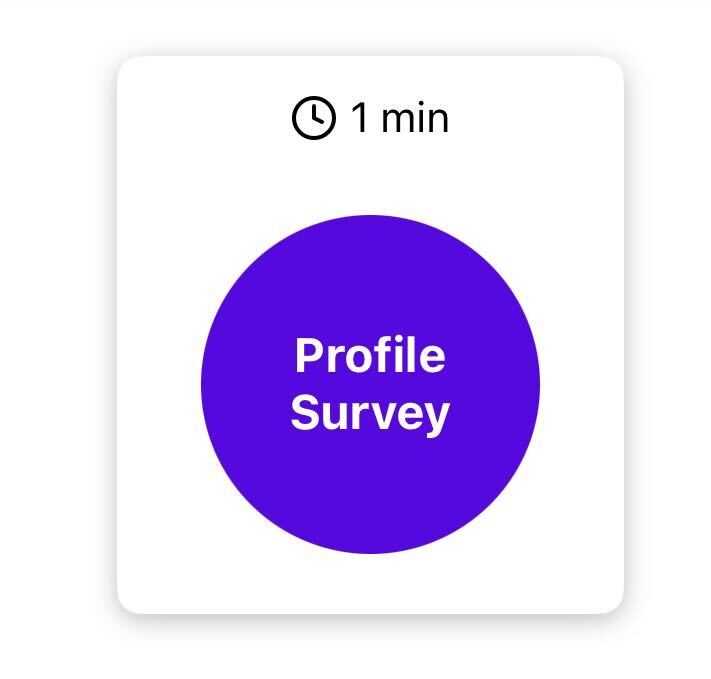
1. The profile survey
New users must complete the introductory profile survey before they can access other surveys. For these new users, the SDK will return only this survey until they have completed it.
- Only shown to users that are new to TapResearch
- Will always be returned by itself, with a survey identifier of
profile - Display example:
2. Survey details
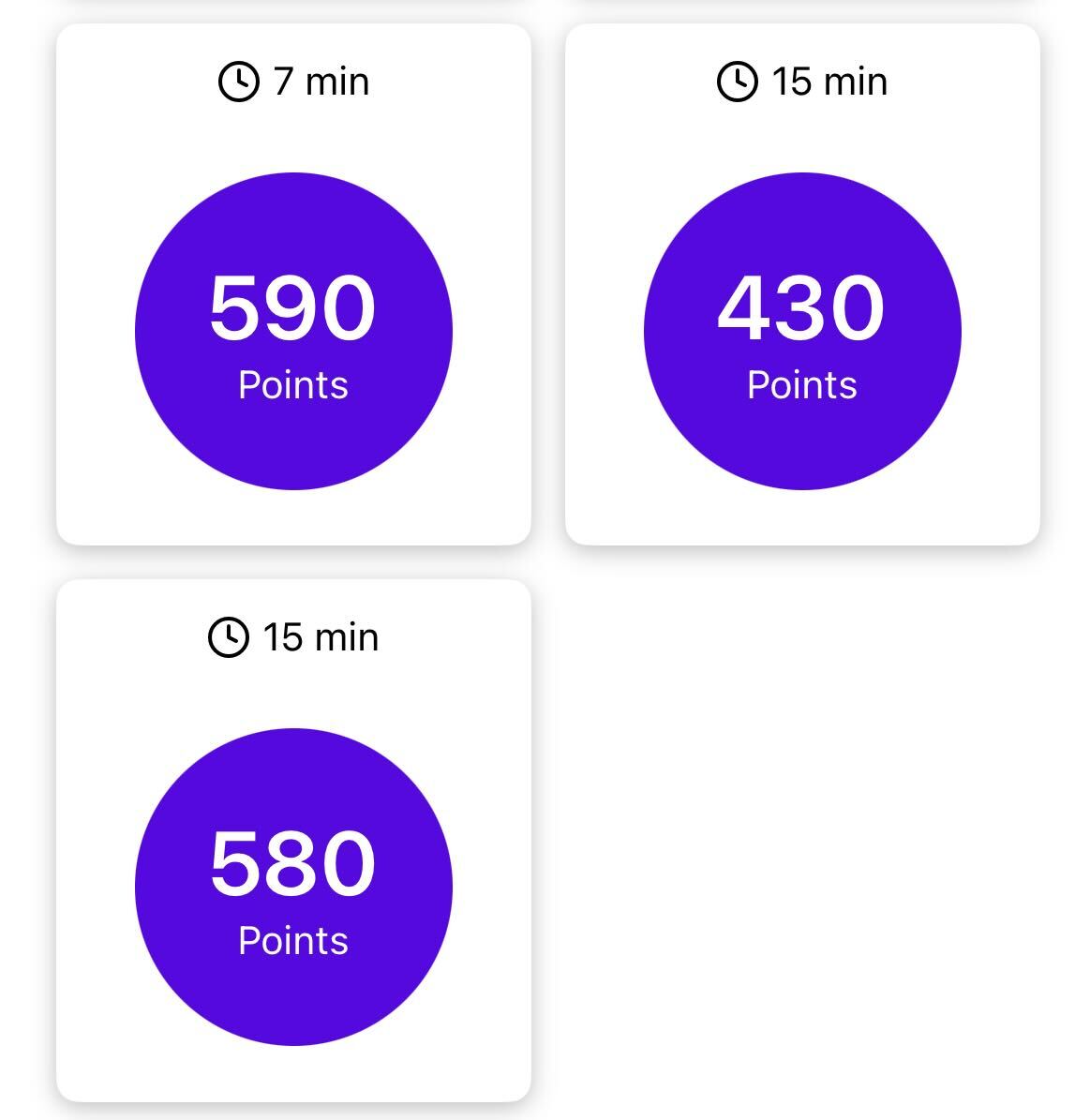
After completing the profile survey, users should then start receiving real surveys. Surveys will have the following attributes:
public class TRSurvey {
  // Primary attributes
  [SerializeField] private string surveyIdentifier; // Unique identifier, will be used when a user taps on a survey
  [SerializeField] private string currencyName; // The name of the reward currency
  [SerializeField] private int    lengthInMinutes; // The estimated time to complete the survey
  [SerializeField] private double rewardAmount; // The reward amount for taking the survey
  [SerializeField] private bool   isHotTile; // Whether the survey should be designated as a "hot tile"
  [SerializeField] private string category; // The survey's category, if it has one

  // Sale attributes
  [SerializeField] private bool   isSale; // Whether a currency sale is currently active
  [SerializeField] private double saleMultiplier; // The multiplier being applied to the sale
  [SerializeField] private double preSaleRewardAmount; // The pre-multiplier reward amount, for enhancing UI during a sale
  [SerializeField] private string saleEndDate; // If a sale is active, the UTC date it will end


  public string SurveyIdentifier    { get { return surveyIdentifier;    } }
  public string CurrencyName        { get { return currencyName;        } }
  public int    LengthInMinutes     { get { return lengthInMinutes;     } }
  public double RewardAmount        { get { return rewardAmount;        } }
  public bool   IsHotTile           { get { return isHotTile;           } }
  public string Category            { get { return category;            } }
  public bool   IsSale              { get { return isSale;              } }
  public double SaleMultiplier      { get { return saleMultiplier;      } }
  public double PreSaleRewardAmount { get { return preSaleRewardAmount; } }
  public string SaleEndDate         { get { return saleEndDate;         } }
}
- We recommend displaying all primary data points to allow users to choose which survey length/reward they want
- Display example:
3. "Hot" tiles
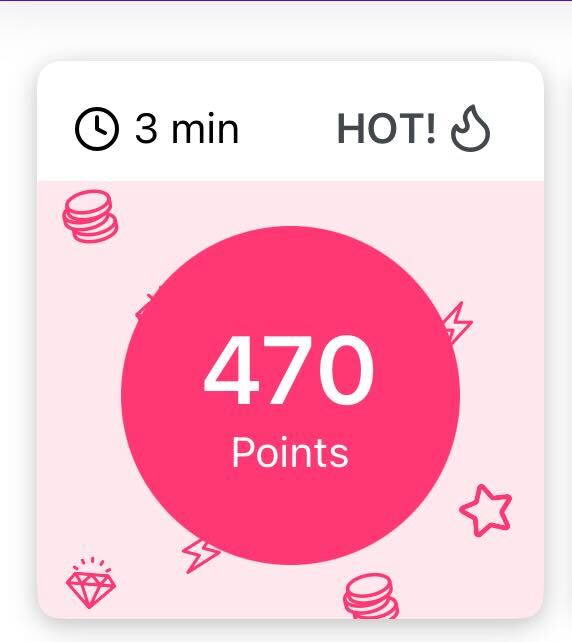
Hot tiles are surveys with exceptional scores, typically offering the best time-to-reward ratio. Displaying a special UI highlight for these surveys is recommended, as they tend to increase user engagement and click-through rates.
- Display example:
4. Currency Sales
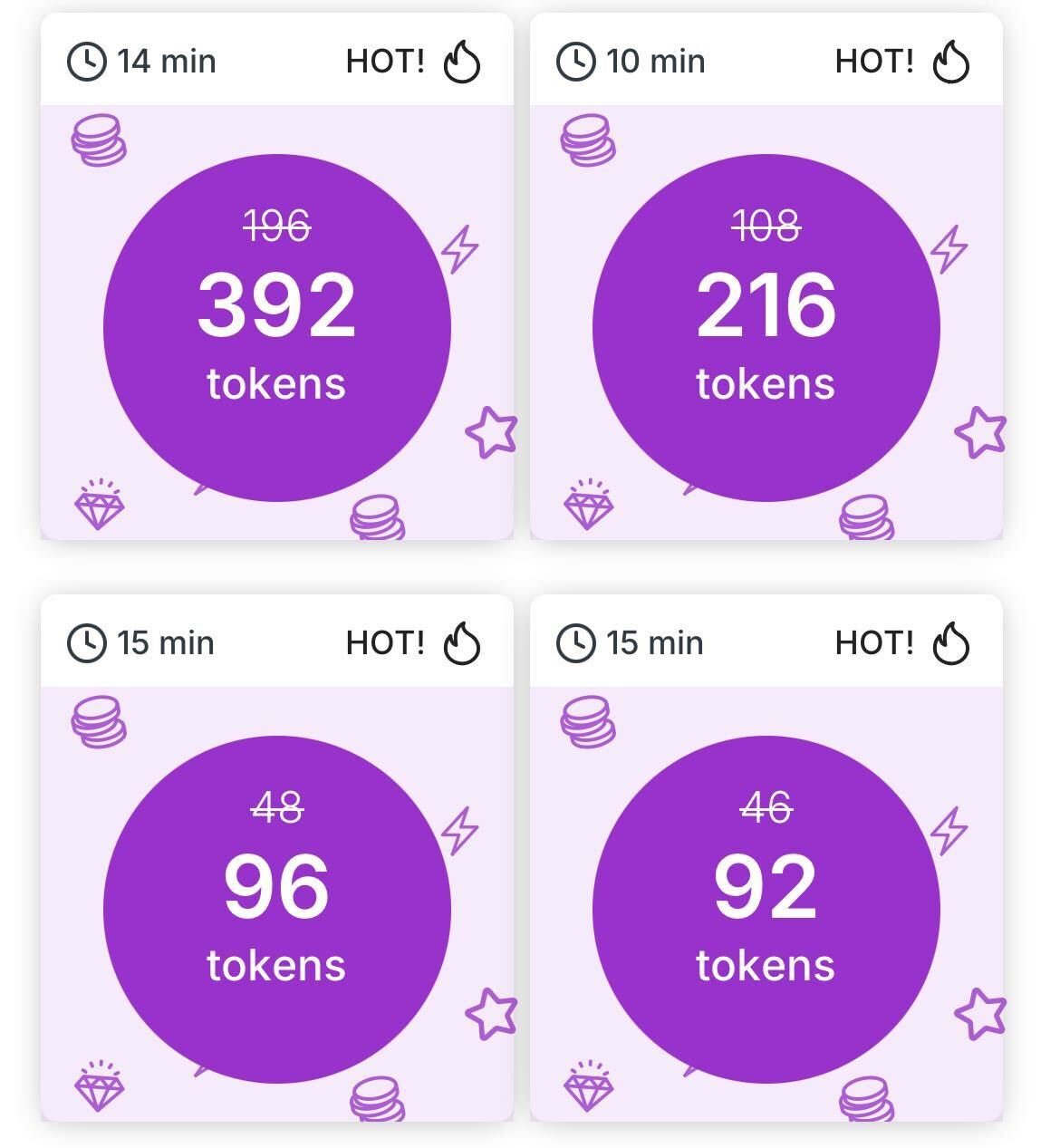
When running promotional currency sales, the relevant sale attributes of the survey object will populate, allowing you to show enhanced UIs and CTAs to users. We recommend using this data to display the extra rewards boost on the individual tiles.
- Display example:
Integration
SDK interfaces
Checking for available surveys
When you have received notification that the SDK is ready (see Checking if the SDK is ready) you should first check if there are surveys available for your placement:
bool flag = TapResearchSDK.HasSurveys("placementTag");
Getting available surveys
Get the surveys for your placement.
TRSurvey[] surveys = TapResearchSDK.GetSurveysForPlacement("placementTag");
Showing a survey
Showing a survey works similarly to ShowContentForPlacement used for showing TapResearch survey content: after checking that surveys are available, call ShowSurveyForPlacement with the survey's identifier and the placement tag. Content shown and dismissed events are delivered to the TapContentShown and TapContentDismissed callbacks; see Callbacks for details.
TapResearchSDK.ShowSurveyForPlacement(survey.SurveyIdentifier, placementTag);
If you need to pass custom parameters you can use ShowSurveyForPlacement and pass a dictionary:
Dictionary<string, object> customParameters = new Dictionary<string,object>();
customParameters["player_attribute"] = "my-vip";
customParameters["data_value"] = "integer";
customParameters["another_number"] = 12;
customParameters.Add("another_string", "it's another string!");

TapResearchSDK.ShowSurveyForPlacement(survey.SurveyIdentifier, placementTag, customParameters);
Callback
Native Survey Tiles adds a required callback that lets you know when surveys have been refreshed.
Setting the callback
Assigning a handler to TapResearchSDK.TapResearchSurveysRefreshed turns the callback on; set it to null to turn it off, for example when leaving the scene that shows surveys.
Handling the callback
You will see calls to the callback function when surveys have been completed, after any TapResearch content has been dismissed.
Required: Make sure to set the SDK's TapResearchSDK.TapResearchSurveysRefreshed callback:
The callback is defined as void TapResearchSurveysRefreshDelegate(string placementTag). To set the callback:
TapResearchSDK.TapResearchSurveysRefreshed = TapResearchSurveysRefreshed;
Implement the callback:
private void TapResearchSurveysRefreshed(string placementTag) {
	TRSurvey[] surveys = TapResearchSDK.GetSurveysForPlacement(placementTag);
	// Update displayed survey buttons
}