Testing & going live
All apps created in the Publisher Dashboard start in test mode.
In test mode:
- Only registered test devices can access content.
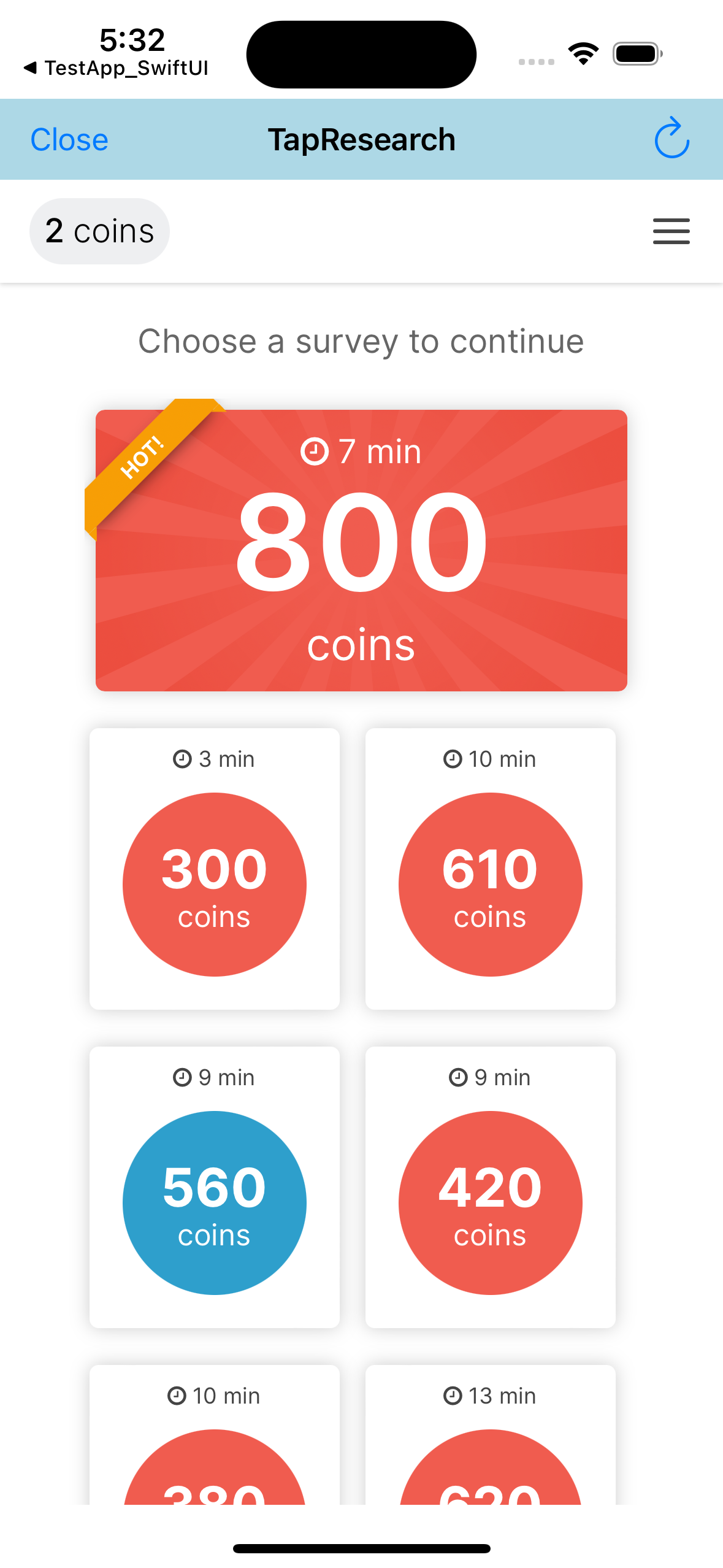
- Test devices see a test version of the survey wall, where you generate test survey completes instead of taking real surveys.
Purpose: Verify the integration is properly configured before going live.
Test mode, test devices, and going live apply to all integration paths. The verification walkthrough below uses the SDK survey wall as the example; with the Hosted Link, Eligibility API, or Survey Feed API, you verify through that path's own survey flow.
Steps to go live
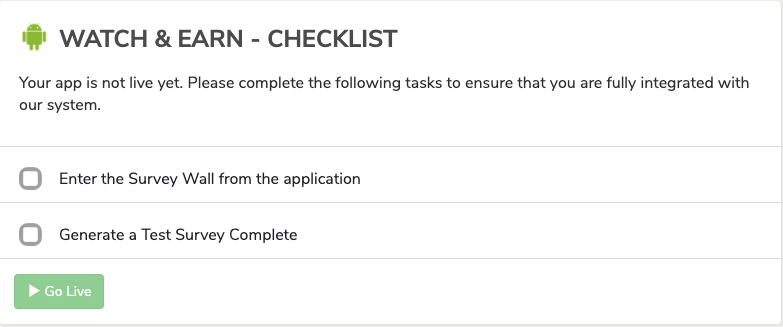
Your app's Integration tab tracks these steps in a checklist and holds the Go Live button.
Add a test device
Only test devices can access apps in test mode.
To add a test device:
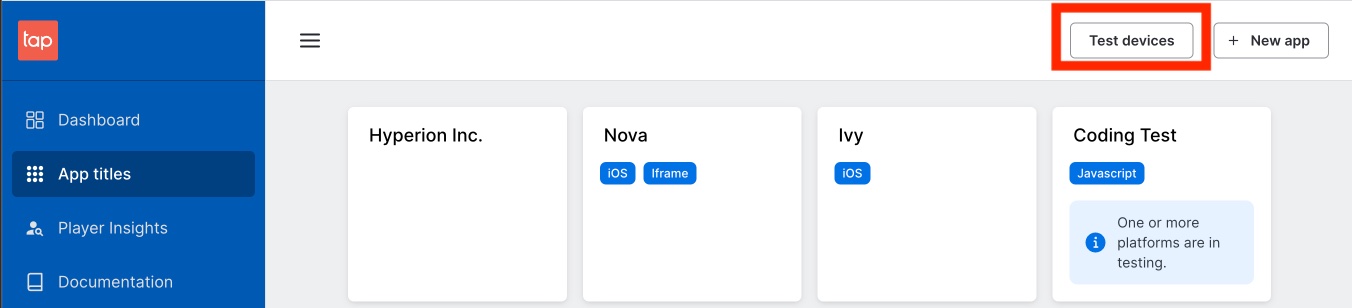
- In the Publisher Dashboard, open your app and select Test devices from the More menu in the header.
- Click New test device.
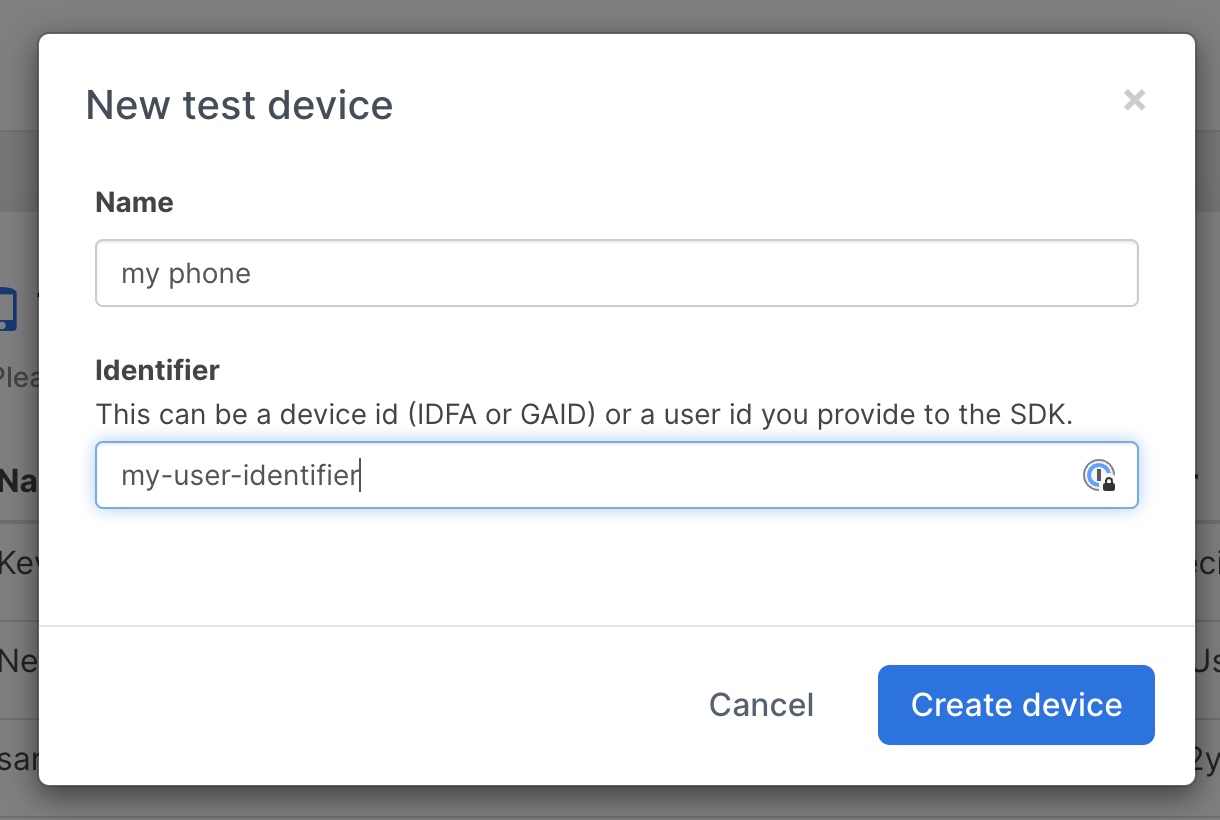
- Enter:
- Name — a descriptive name for the device
- Identifier — use one of:
- iOS: IDFA
- Android: Advertising ID
- Or the unique user identifier you send to TapResearch
- Click Create device.
Test mode keys off the identifier your integration actually sends — there's no
separate "test account." Whatever value you pass as the user identifier (the
userIdentifier in the SDK, or the uid / user_identifier in a Hosted Link
URL or API request) has to be registered here as a test device. If it isn't,
that user sees "no surveys available" (SDK / Hosted Link) or gets
has_offer: false / is_eligible: false (Eligibility API / Survey Feed API)
— which looks like a broken integration but is really just test mode doing its
job.
Firing a test postback on its own does not exercise this — a real session from a registered test device is what's required.
Test mode
Once the SDK is initialized, open the survey wall from a test device to enter the test view.
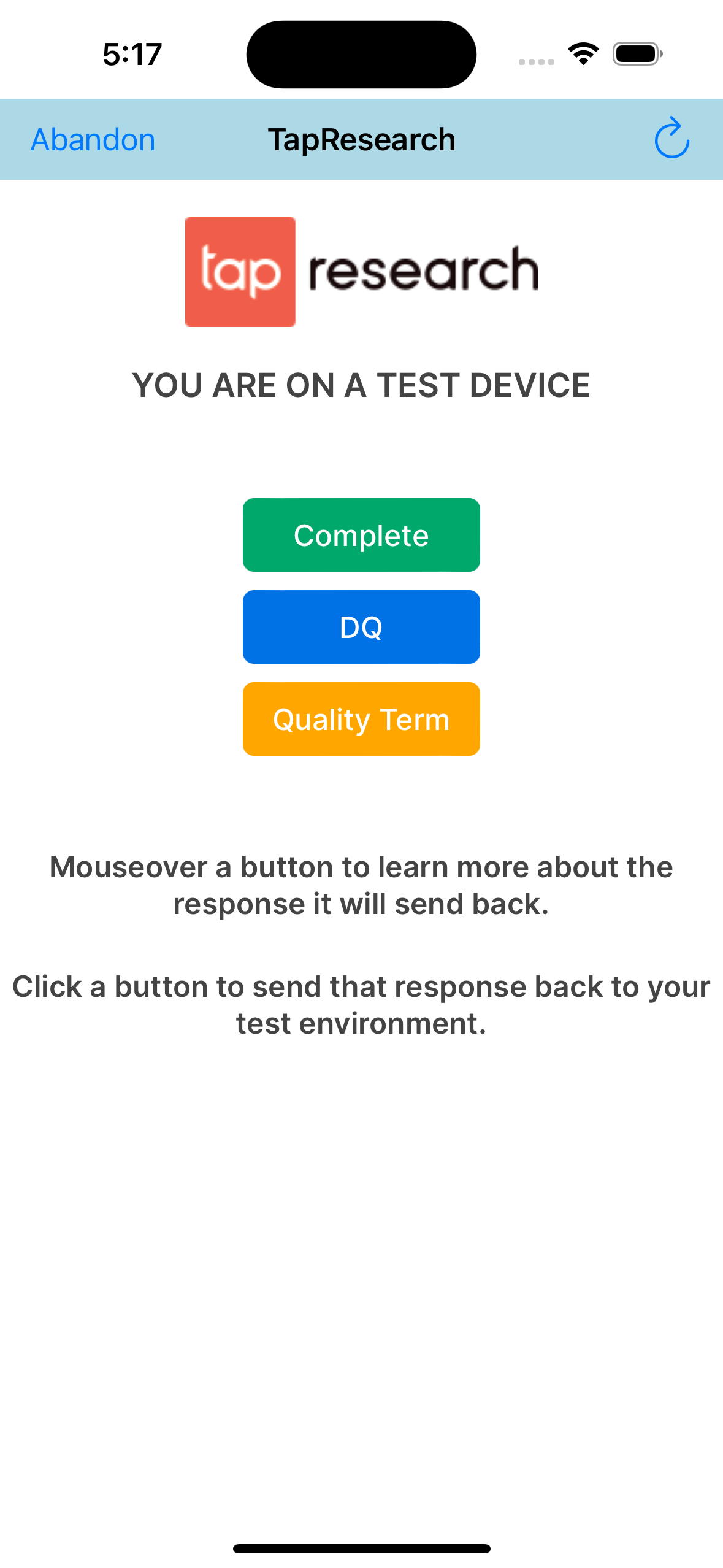
Note: If you're testing from an unsupported country, you'll default to the US and see US surveys. However, you may encounter issues taking surveys due to IP location restrictions.
Complete the test: Click the Complete button to generate a test survey completion. This triggers your configured reward callback or postback.
QA checklist
Once your test device is added:
- Complete a test survey
- Complete the remaining steps in your app's Integration tab checklist
Live mode
To go live:
- Open your app's Integration tab
- Click Go Live
Testing after going live
When your app is live but you're still using a test device:
If you haven't completed the prescreener:
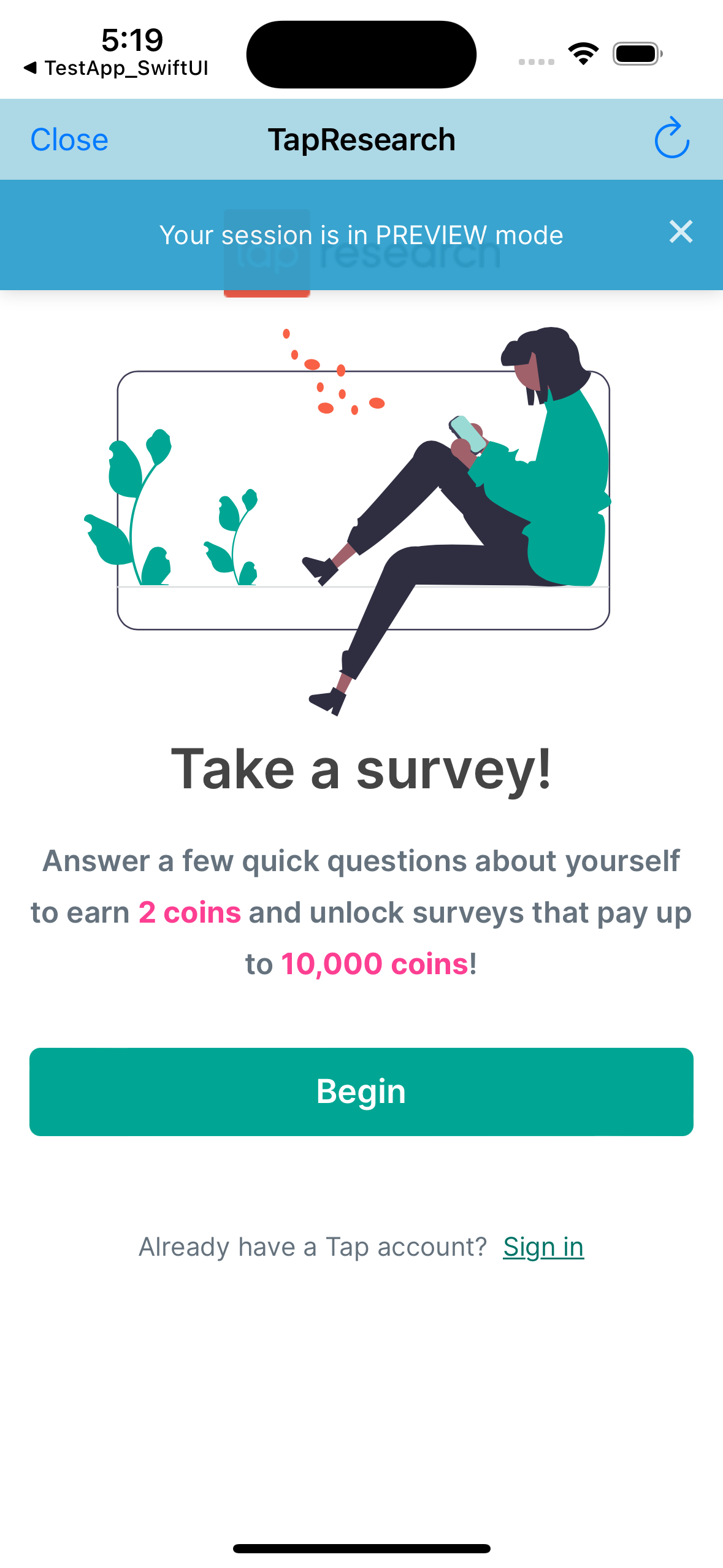
If you've completed the prescreener:
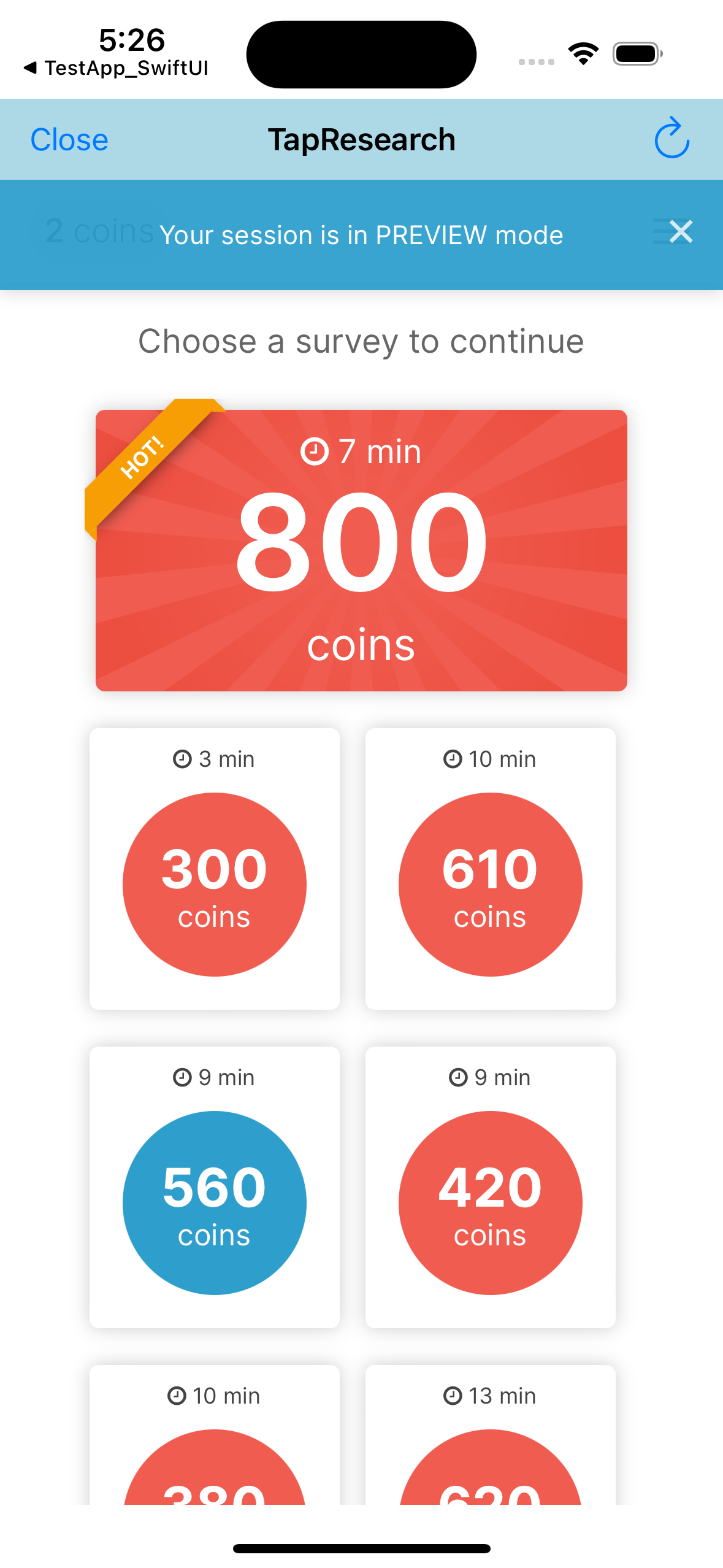
Normal live mode (non-test device):