Placements
A placement is a configured slot where TapResearch content appears, created under
Manage → Placements in the
Publisher Dashboard. You
create placements no matter which integration you use, then reference each one by its
code tag. The content-display mechanics on this page (showContentForPlacement(),
pop-up content) apply to the SDK integration.
If you make changes to placements, you'll need to reinitialize the SDK to see those changes.
There are 2 types of placements:
Pop-up placements
Use Pop-up placements for content that opens automatically when an event occurs in your app (for example, on app start), such as:
- Sale banners
- Sale interstitials
- Quick Questions
Survey Wall placements
Use Survey wall placements for content that opens in response to a user action, such as:
- Button clicks to open the survey wall
- Earn center interactions
Both placement types use the showContentForPlacement() call, but behave differently based on their type.
When a new placement is created, your dev team must implement it in your app code. Once the placement is created, you can add and remove content from it without needing to update your app.
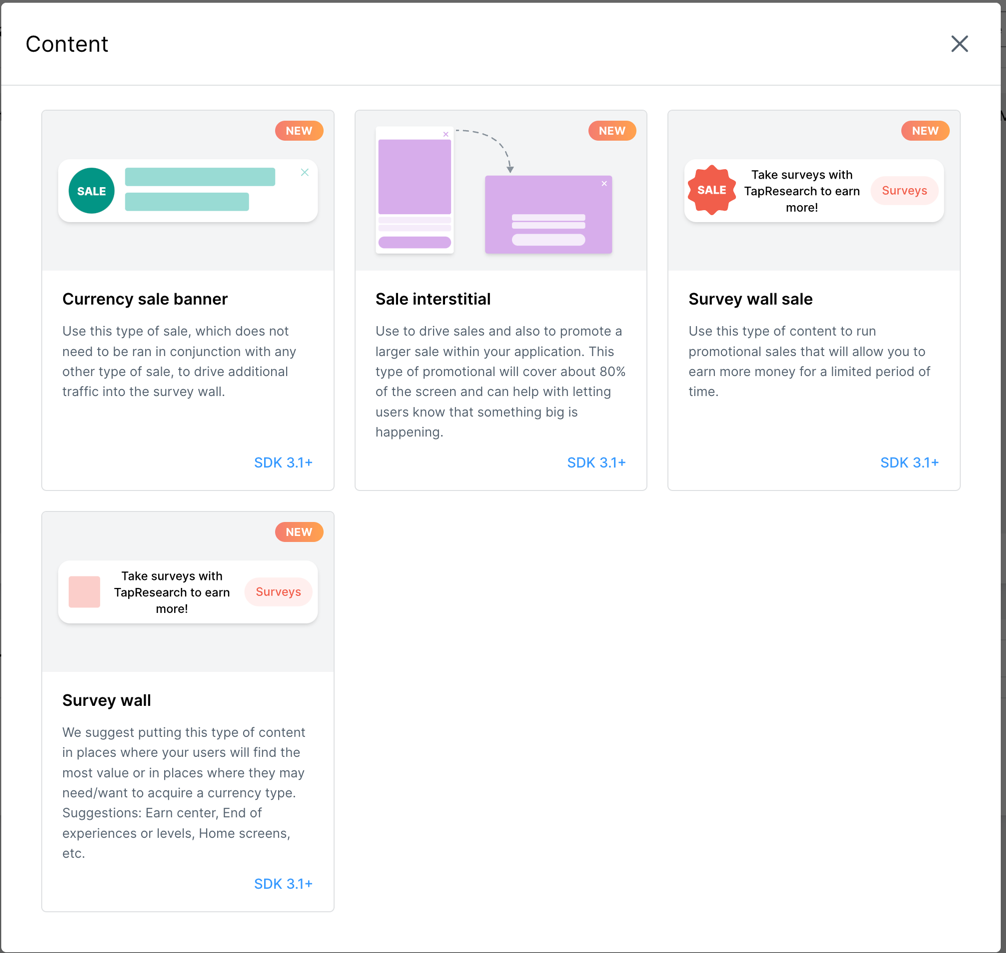
Pop-up placement content types
Pop-up placements support the following content types:
- Sale banner - A banner promoting a currency sale
- Sale interstitial - A larger pop-up promoting a currency sale
- Quick question - A short Quick Question for your users
Behavior
When showContentForPlacement() is called:
- The user sees the first piece of content matching their attributes
- If no attributes are defined, the first content item is shown
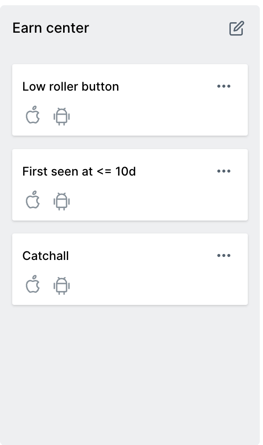
Best practice: Always include a default piece of content for each placement in case users don't match any specific attributes. See the example below:
Survey Wall placement content types
Survey wall placements support:
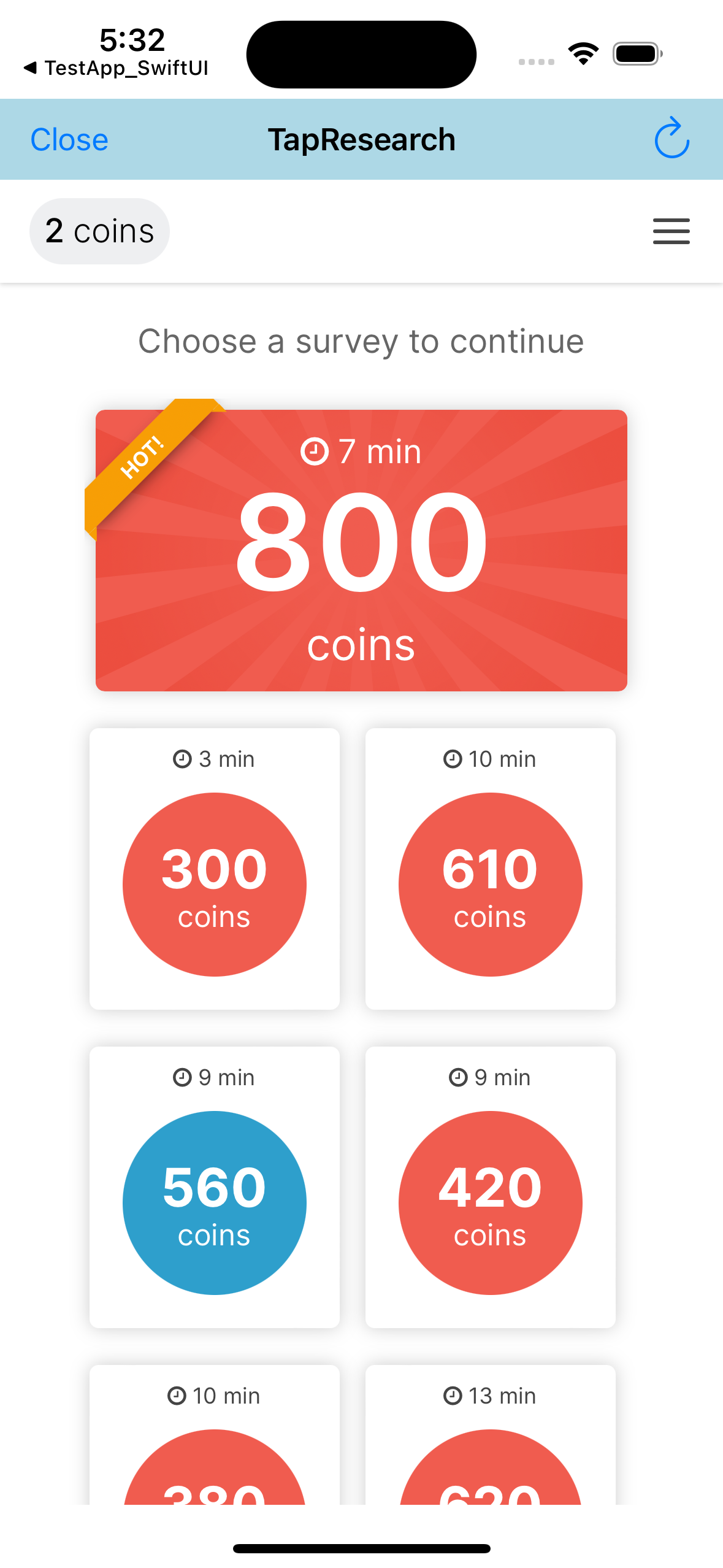
- Survey wall - Opens the full survey wall experience when triggered
- Native Survey Tiles - Returns surveys for you to show as tiles in your own UI (see Native Survey Tiles)
Creating a placement
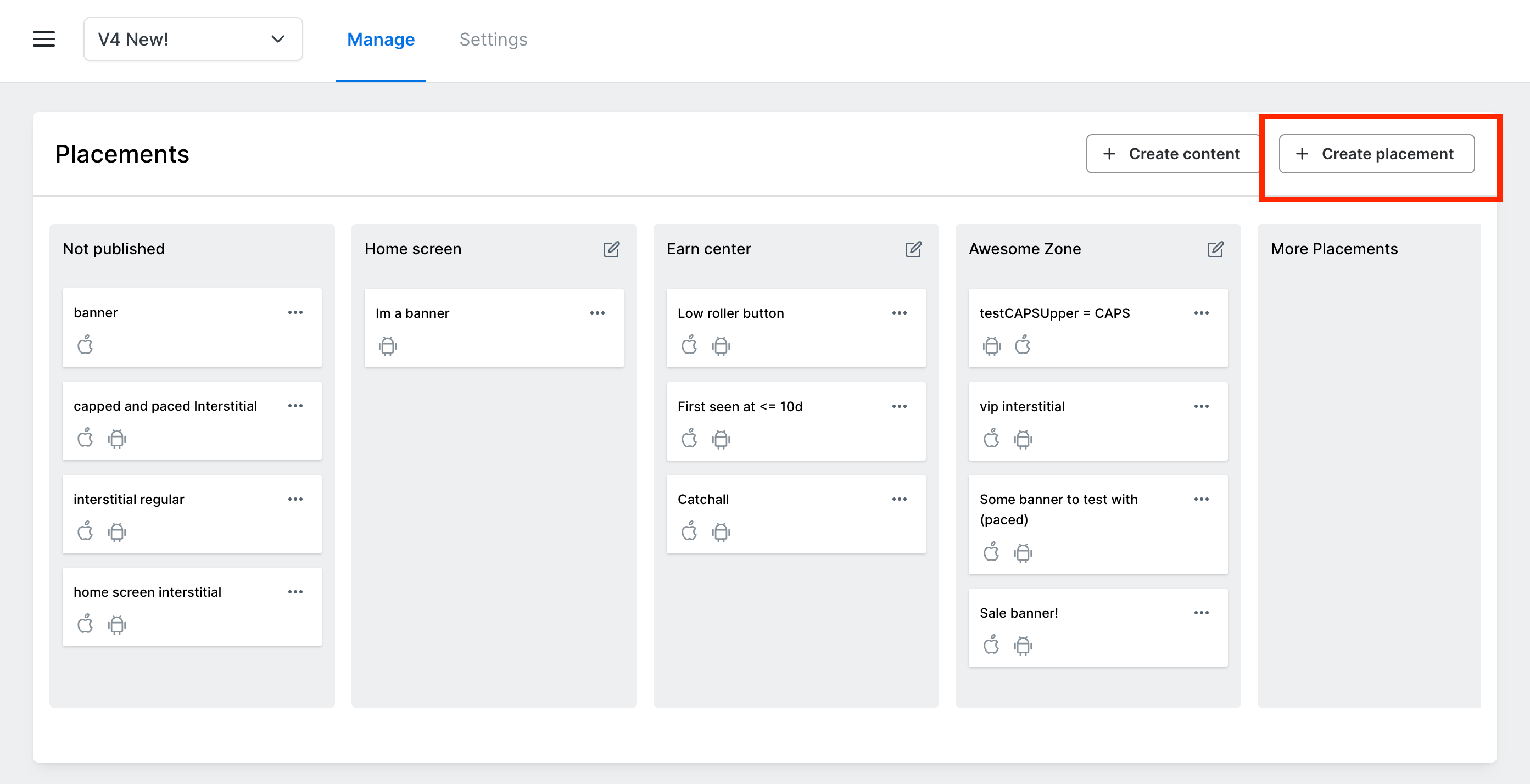
- Click the Create placement button in the top right corner of the placements page
- Fill out the placement details in the modal
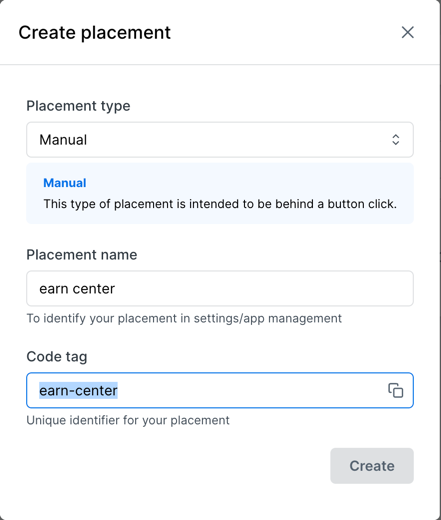
- Use the Code tag in your app to display the placement
Example: showContentForPlacement("earn-center")
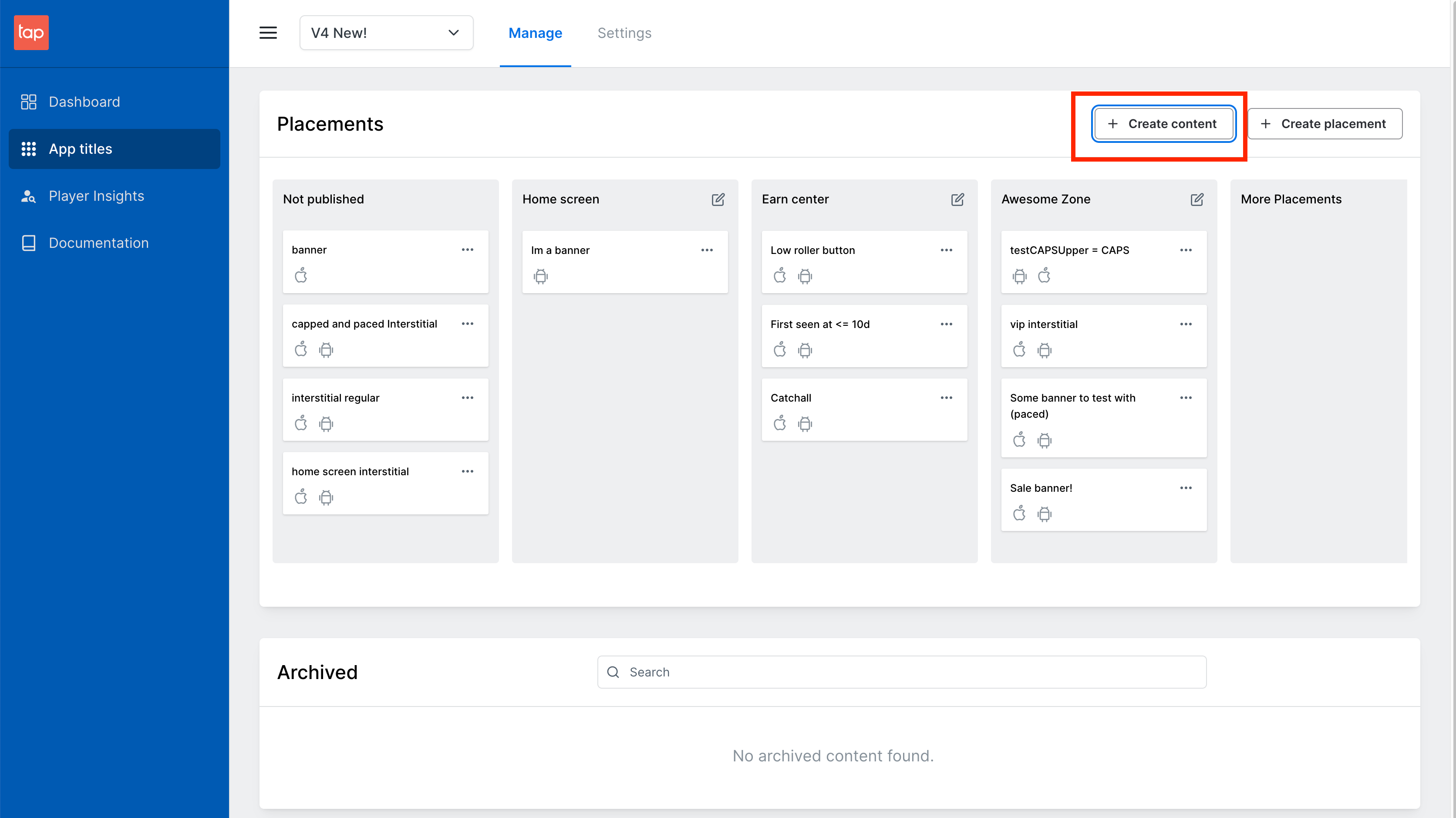
Creating content
Once you have a placement:
- Click the Create content button in the top right of the page
- Select your content type from the modal
- Fill out the form and click Submit
Your content will immediately go live to users.
To test specific content for QA, target yourself using user attributes.